
Docs Search the docs
  1. Docs
  2. View and navigate

Zoom and pan

The wheel zooms where you point. Drag with it to pan.

  • How-to
  • 1 min
  • Free and Pro
  • Checked with Fluah 1.0.34

Where to find it

ViewZoom in

Steps

  1. Turn the wheel over the drawing. It zooms where you point.
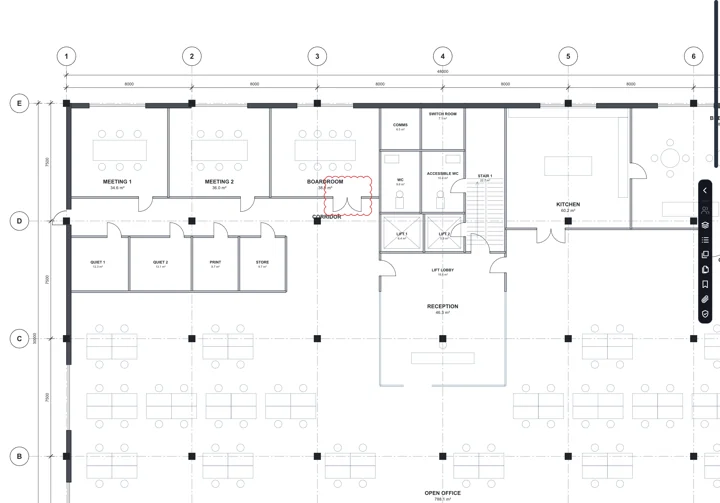
    The meeting rooms, zoomed in with the wheel
  2. Or use the status bar: − + Fit page Fit width.

    Zoom out, Zoom in, Fit page and Fit width in the status bar
  3. Or the keys: F fits the page, ShiftF its width.
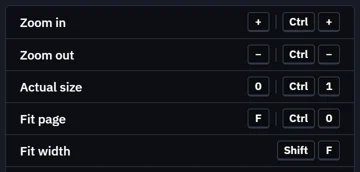
    The keys: Zoom in, Zoom out, Actual size, Fit page and Fit width
  4. To pan, drag with the wheel pressed, or hold Space and drag.

  5. Or pick Pan and drag.

    The Pan tool in the toolbar
  6. Rather scroll with the wheel? Click Wheel scrolls. Ctrl and the wheel still zoom.

    WHEEL in the status bar: Wheel zooms, and Wheel scrolls marked
Was this page helpful?

Updated 6 November 2026