
Change a measurement's label
Choose what the label says and how it looks.
Where to find it
PropertiesMeasurement
Steps
Select the measurement. Its label's settings are under Measurement in Properties.
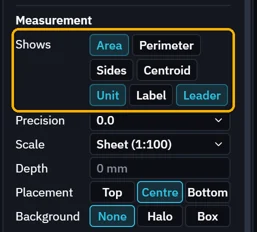
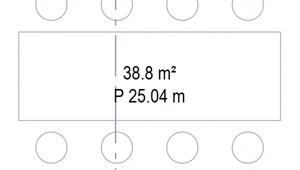
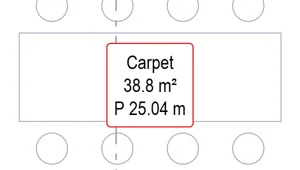
Click a chip in Shows to add a line. Perimeter adds the perimeter.
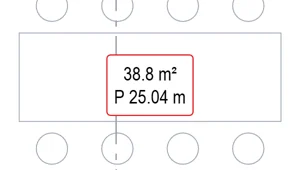
Background › Box puts the label in a box.
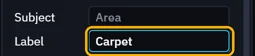
For a name, switch on Label and type it in Label under Markup.
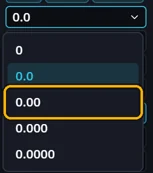
Precision sets the decimals.
Was this page helpful?
Updated 6 November 2026