
Use the Pages view
Every page as a thumbnail, to pick, move and change.
Where to find it
Pages on the pull-up bar, or ViewPages
Steps
Click Pages on the pull-up bar, right of the page.

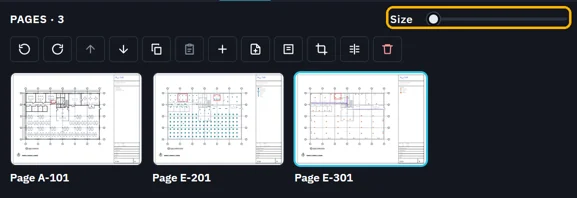
The Pages view opens beside the drawing.
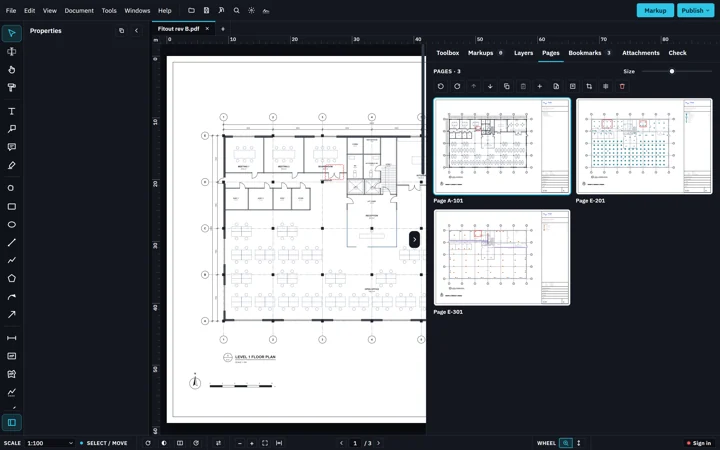
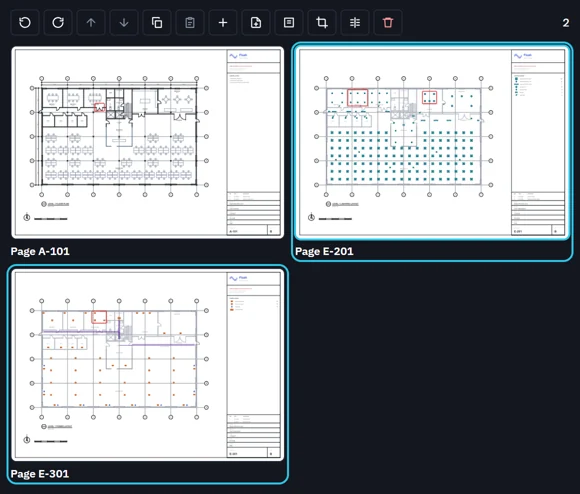
Click a page to go to it. Ctrl-click or Shift-click to pick more.
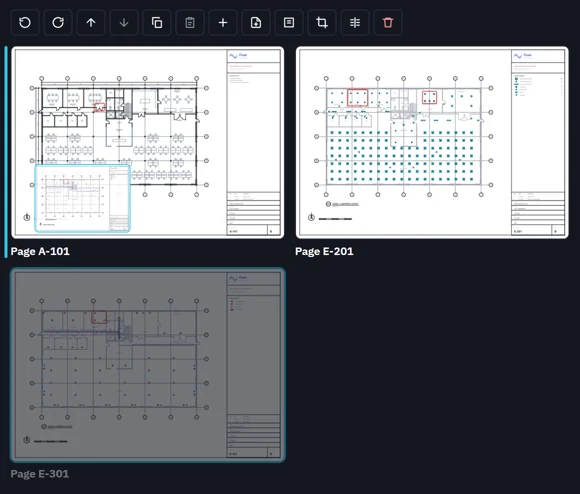
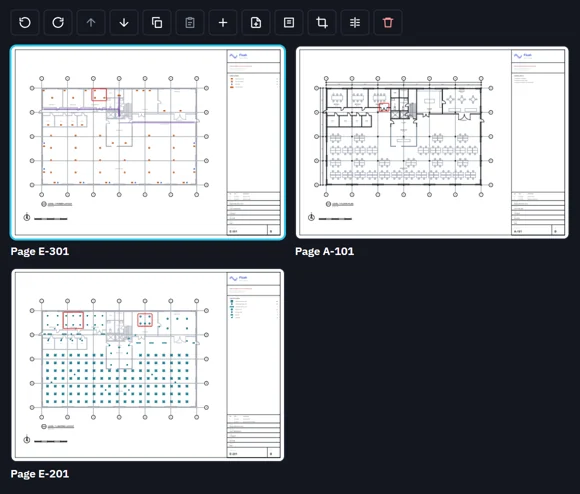
Drag a page to move it. Hold Ctrl to copy it instead.
Drag Size to change the thumbnails.
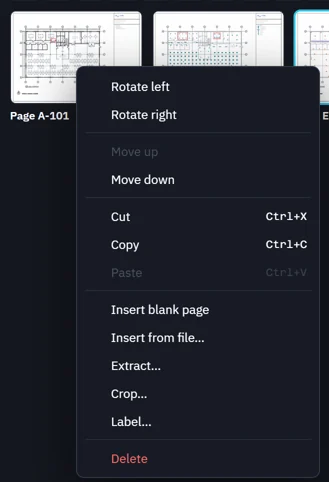
Right-click a page for its commands.
 Tip. CtrlZ takes back a page change. Save writes it to the file.
Was this page helpful?
Updated 6 November 2026