
Save, save a copy, or flatten
Keep your markups in the PDF, or draw them into a copy.
Where to find it
Save and Flatten & save on the top bar, or File
Steps
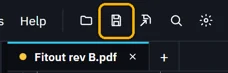
Click Save or press CtrlS. The tab's dot means unsaved changes.

Flatten & save saves a copy with the markups drawn in. Yours stays open.


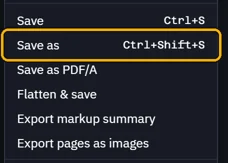
File › Save as saves a copy and moves the tab to it.
Turn on Auto save to save 5 minutes after a change.
 Tip. Set the minutes in Settings › General › Saving.On the Free plan, saves and flattened copies keep only measurements.
Was this page helpful?
Updated 6 November 2026