
Draw lines, arrows and arcs
Straight, pointed or curved, with the ends you want.
Where to find it
Line
Steps
Pick a tool in the toolbar.
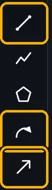
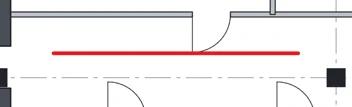
Line L: drag. Hold Shift to keep it level or plumb.
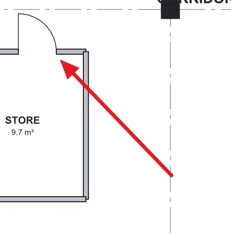
Arrow W: drag from the tail to the tip.
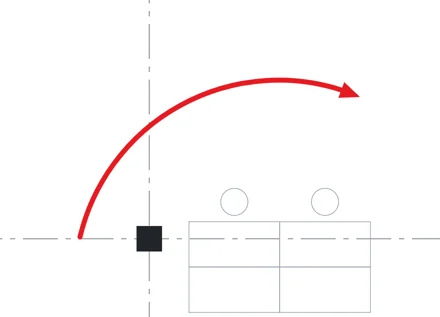
Arc arrow ShiftW: click the start, the end, then a point on the curve.
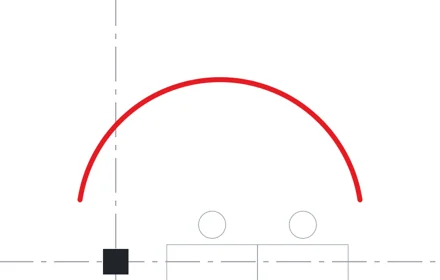
For an arc with no head, Tools › Arc, or press ShiftC. Click the same three points.
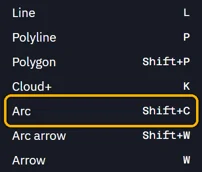
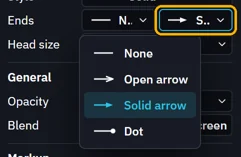
To change the ends, click the line and pick them in Ends.
Was this page helpful?
Updated 6 November 2026