
Parameters, Types and formulas
Give a dimension-driven symbol its sizes, and work one value out from another.
Where to find it
Edit toolParameters
Steps
In the tool's tab, click Parameters.
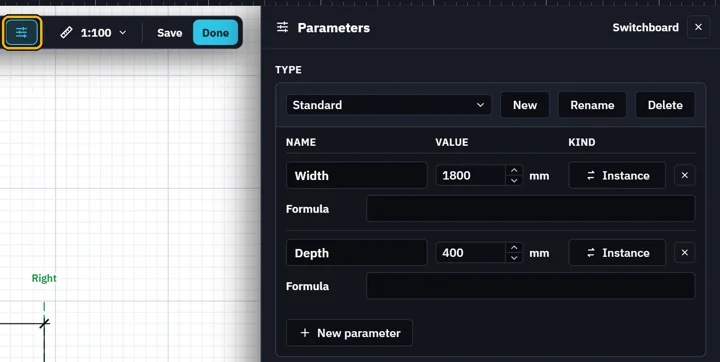
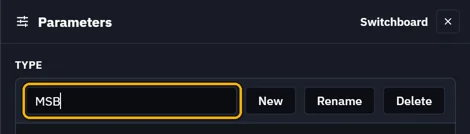
Click New for a new Type. Type its name and press Enter.
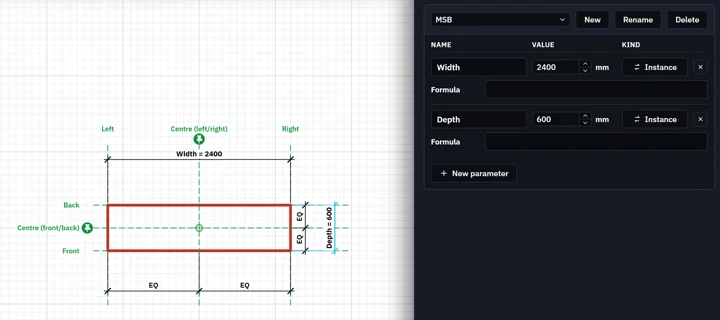
Type the Type's values. The drawing follows.
Click Instance to make a parameter a Type one.
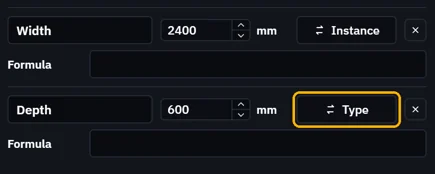 A Type value is the same on every copy of that Type. An Instance value can differ on each copy, and has handles on the sheet.
A Formula works a value out from others. The Downlight's Right is Width/2.
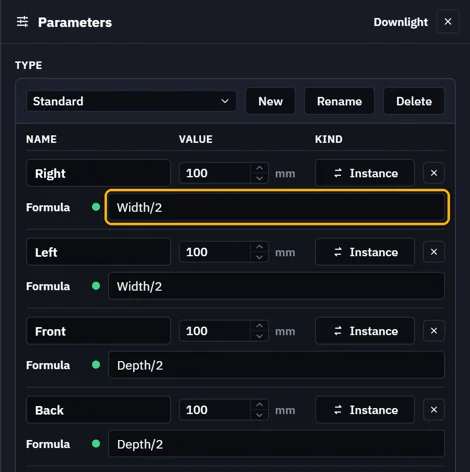 A green dot means the formula is working.
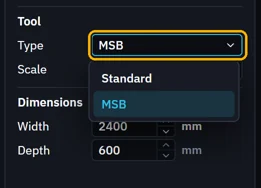
Click Done. Pick the Type in the tool's properties as you place it.
What’s next
Was this page helpful?
Updated 6 November 2026