
Compare from the Compare card
Switch on Compare once, then compare from the top bar.
Before you begin
Download the sample drawings: revision B is the current issue, revision A the one before it.
Where to find it
SettingsWorkspaceModes
Steps
Open Settings › Workspace › Modes and switch on Compare.
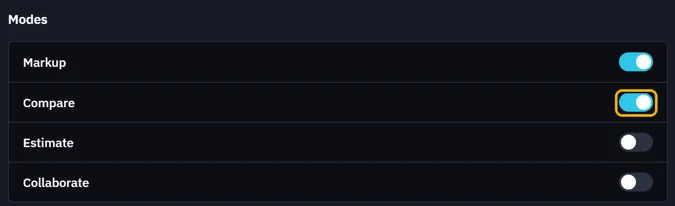
Click Compare on the top bar.

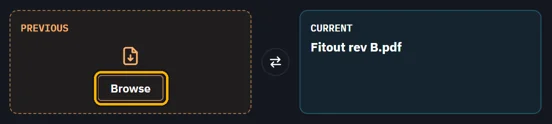
In PREVIOUS, click Browse and pick the earlier issue.
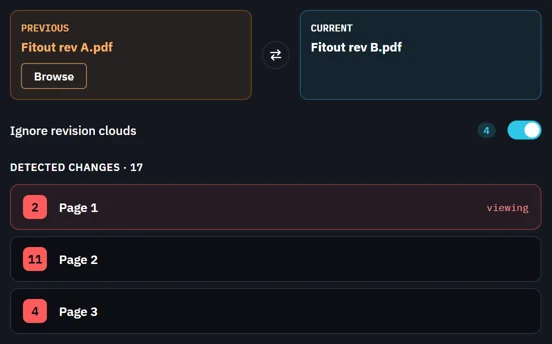
Each page's changes are counted. Click a page to go to it.
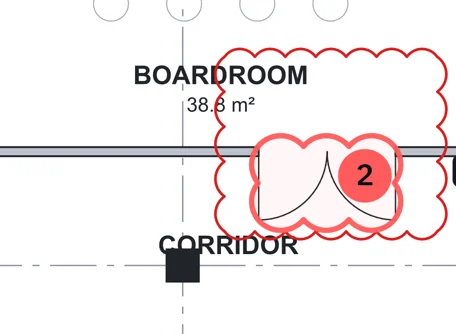
Each change is clouded and numbered on the sheet.
Click Markup to go back.
What’s next
Was this page helpful?
Updated 6 November 2026