
Toolbar layouts and the Properties panel
Tools in a column, a row or a block, with their properties.
Where to find it
ViewSingle-column toolbar
Steps
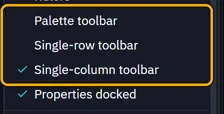
View, then pick Palette toolbar, Single-row toolbar or Single-column toolbar.
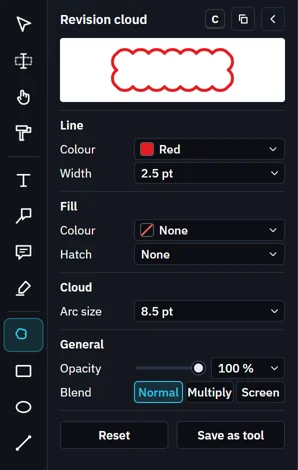
Single column, as Fluah starts: the Properties panel sits beside the tools.
Single row: the tools across the window, under the top bar.

Palette: the tools in a block, their properties under them.
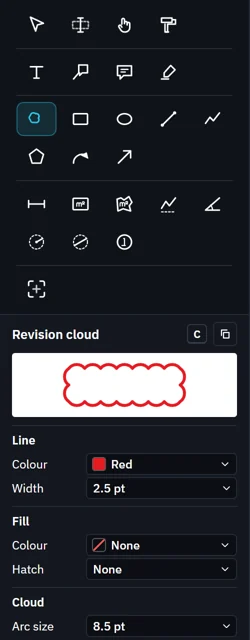
The panel's own buttons float it or fold it away. View › Properties docked docks it again.

Was this page helpful?
Updated 6 November 2026