
Snap to the drawing
Put a markup's points exactly on the drawing's own lines.
Where to find it
Line
Steps
Pick Line in the toolbar.

Point near the drawing's lines. The snap dot shows where a click will land.
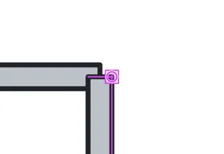
- A square: the end of a line.
- Four ticks: two lines crossing.
- A triangle: the middle of a line.
Click. The point lands on the dot.
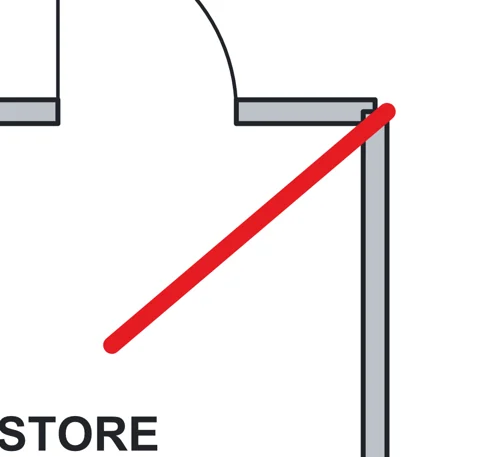 Tip. Hold Ctrl to place a point without snapping.The line tools and the measuring tools snap.
Was this page helpful?
Updated 6 November 2026