Docs Search the docs
  1. Docs
  2. View and navigate

Split view and sync

Two drawings side by side, moving together.

  • How-to
  • 1 min
  • Free and Pro
  • Checked with Fluah 1.0.34

Where to find it

WindowsSplit vertical

Steps

  1. Open two drawings, then click Split view in the status bar.

    Split view in the status bar
  2. The other tab moves into its own pane.
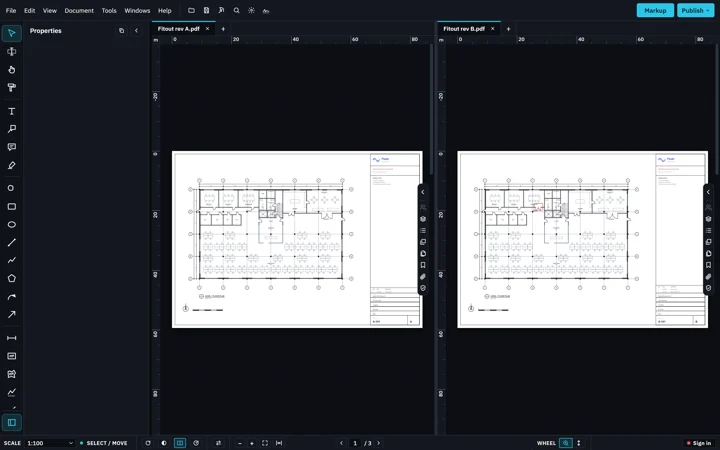
    Two panes: Fitout rev A.pdf on the left, Fitout rev B.pdf on the right
  3. Click Sync views. Zoom or pan in one pane and the other follows.

    Sync views in the status bar, on
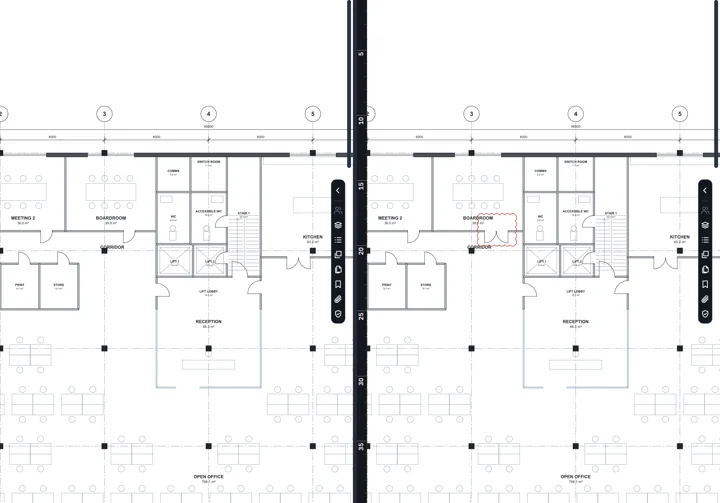
    Both panes at the same place and zoom: the boardroom, rev A left, rev B right
  4. Windows has Split horizontal for one above the other, and Single view to end it.
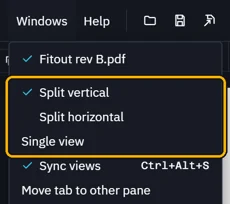
    The Windows menu: Split vertical, Split horizontal and Single view marked, then Sync views
Was this page helpful?

Updated 6 November 2026