Docs Search the docs
  1. Docs
  2. View and navigate

The drawer

Markups, layers, pages and bookmarks, in a drawer beside the page.

  • How-to
  • 1 min
  • Free and Pro
  • Checked with Fluah 1.0.34

Where to find it

ViewMarkups list

Steps

  1. Click a view in the pull-up bar, at the page's right edge: Markups Layers Pages Bookmarks Attachments Check.

    The pull-up bar at the page's right edge: Markups, Layers, Pages, Bookmarks, Attachments and Check marked
  2. The drawer opens beside the page.

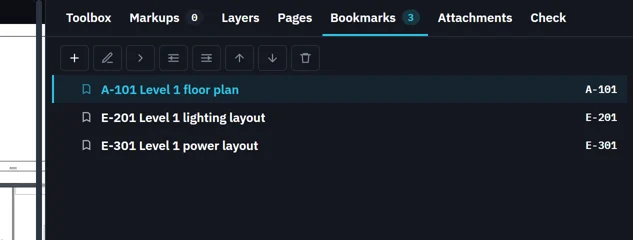
    The drawer open beside the page at Bookmarks: A-101, E-201 and E-301
  3. Switch views with the tabs across its top.

    The drawer's tabs: Toolbox, Markups, Layers, Pages, Bookmarks, Attachments, Check
  4. Drag its edge to make it wider. Click the arrow on its edge to close it.
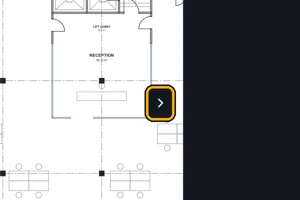
    The arrow on the drawer's edge
Was this page helpful?

Updated 6 November 2026