Docs Search the docs
  1. Docs
  2. View and navigate

Tabs and windows

One tab per drawing. Switch, peek and close.

  • How-to
  • 1 min
  • Free and Pro
  • Checked with Fluah 1.0.34

Where to find it

Windows

Steps

  1. Each open PDF has a tab. Click one, or press CtrlTab.

    Two tabs: Fitout rev B.pdf and Fitout rev A.pdf, rev A in front
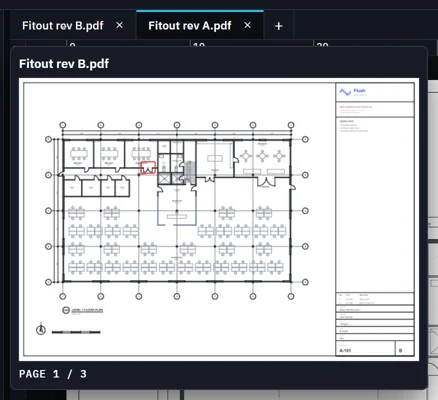
  2. Point at a tab to see its page.

    Pointing at the Fitout rev B.pdf tab: its page, PAGE 1 / 3
  3. An amber dot means unsaved changes.

    The amber dot on the Fitout rev A.pdf tab: unsaved changes
  4. Right-click a tab to copy its path or open its folder.
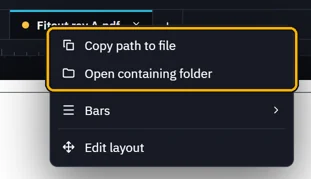
    A tab's right-click: Copy path to file, Open containing folder, Bars, Edit layout
  5. Close a tab with its × or CtrlW. Unsaved changes ask first.
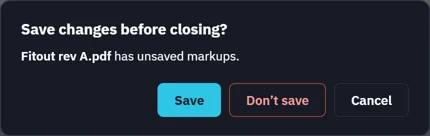
    Save changes before closing? Fitout rev A.pdf has unsaved markups. Save, Don’t save, Cancel
  6. Windows lists every tab. Drag a tab out for a window of its own.
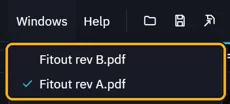
    The Windows menu: Fitout rev B.pdf and Fitout rev A.pdf, rev A ticked
Was this page helpful?

Updated 6 November 2026