Docs Search the docs
  1. Docs
  2. Symbols and the Toolbox

Organise toolboxes

Make your own toolboxes, move tools between them, and lock the ones you rely on.

  • How-to
  • 2 min
  • Free and Pro
  • Checked with Fluah 1.0.34

Where to find it

ToolboxAddNew toolbox

Steps

  1. In the Toolbox, click Add › New toolbox.
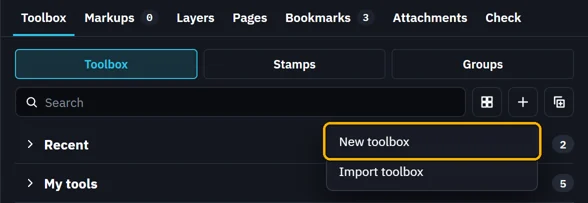
    Add opened in the Toolbox: New toolbox marked, Import toolbox under it
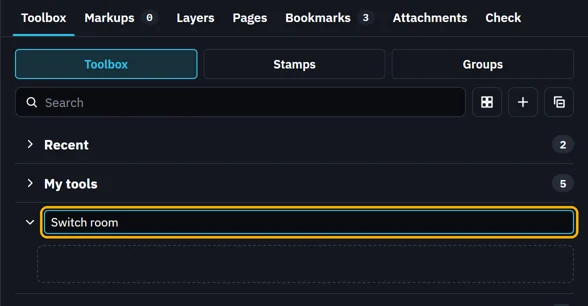
  2. Type its name and press Enter.

    A new toolbox under My tools, Switch room typed as its name
  3. Right-click a tool › Move to › your toolbox.
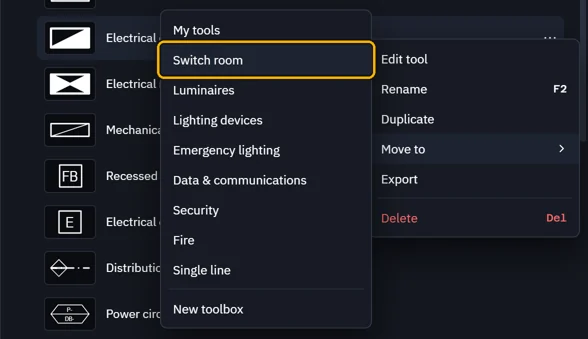
    The Electrical distribution board right-clicked, Move to opened, Switch room marked
    Tip. Or drag the tool onto the toolbox's name.
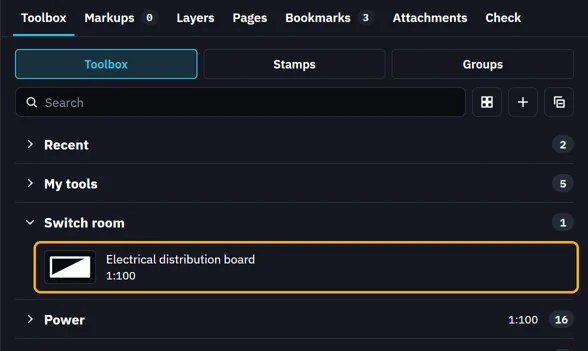
  4. The tool is now in that toolbox.

    Switch room now holds the Electrical distribution board
  5. Right-click a toolbox's name to rename, move, lock or delete it.
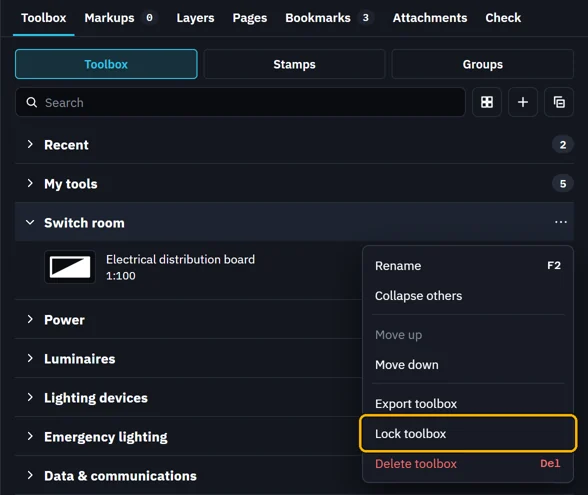
    Switch room right-clicked: Rename, Collapse others, Move up, Move down, Export toolbox, Lock toolbox marked, Delete toolbox
  6. A locked toolbox shows a padlock. Its tools can be picked, but not changed.

    Switch room with a padlock by its name
  7. Recent at the top holds the last six tools you picked.
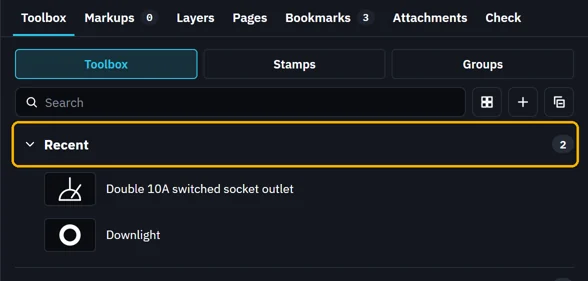
    Recent opened above My tools: Double 10A switched socket outlet, then Downlight

What’s next

Was this page helpful?

Updated 6 November 2026