
Dark mode and greyscale
Dark pages for dim rooms. Greyscale and halftone fade the drawing.
Where to find it
ViewGreyscale & halftone
Steps
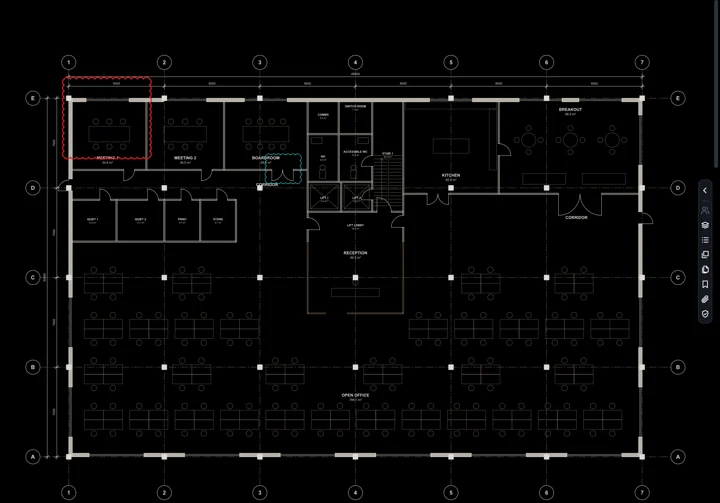
Click Dark mode in the status bar, or View › Dark mode.

The page turns dark. Your markups keep their colours. Click again to go back.
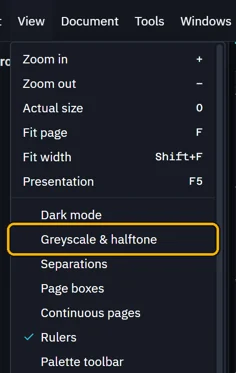
View › Greyscale & halftone.
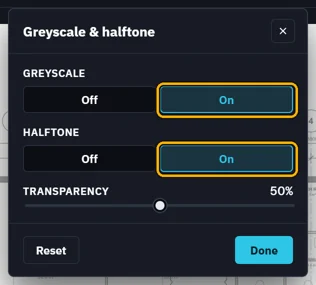
Turn GREYSCALE and HALFTONE On, set TRANSPARENCY, then click Done.
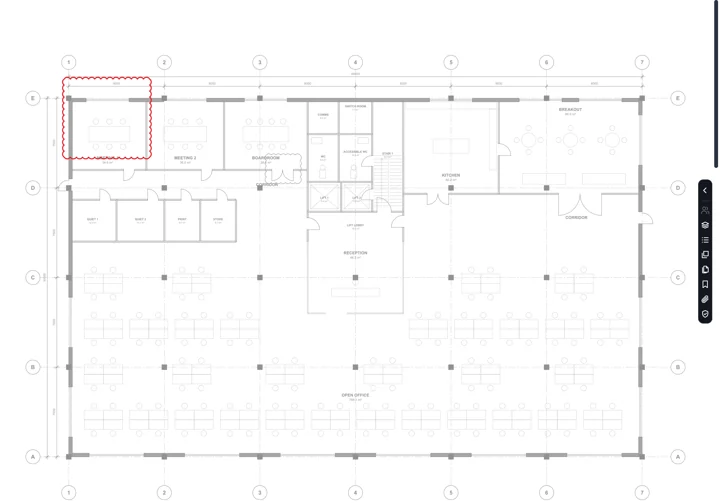
The drawing fades, so your markups stand out. Reset undoes it.
Was this page helpful?
Updated 6 November 2026