
Docs Search the docs
  1. Docs
  2. Make it yours

Edit layout

Drag any button to where you want it, on any bar.

  • Tutorial
  • 2 min
  • Free and Pro
  • Checked with Fluah 1.0.34

Where to find it

ViewEdit layout

Steps

  1. View › Edit layout. A bar's right-click has it too.
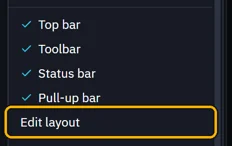
    The View menu: Top bar, Toolbar, Status bar, Pull-up bar, then Edit layout marked
  2. Every button shows a dashed box, and each bar its name.
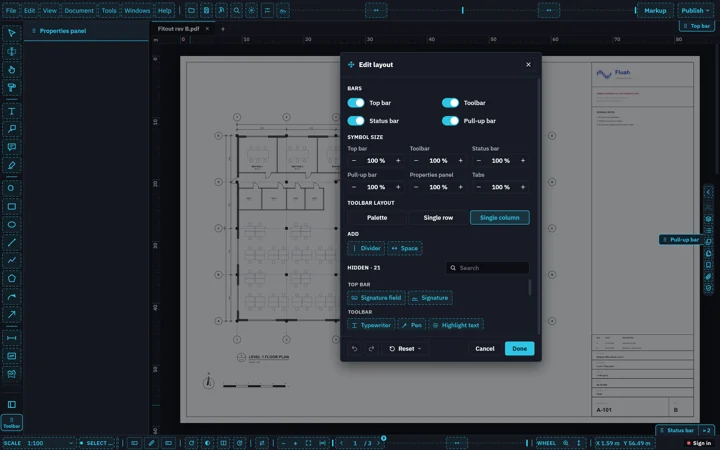
    Fluah in Edit layout: every button in a dashed box, each bar's name on a tab, the Edit layout panel
  3. Drag a button along its bar, or onto another. Here Dark mode joins the top bar.

    Dark mode dropped on the top bar, after Sign
  4. Drag a bar's name tab to put the bar on another side.
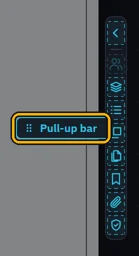
    The Pull-up bar's name tab: drag it to another side
  5. The panel switches bars and sizes their symbols. Drop a button on it to hide it.
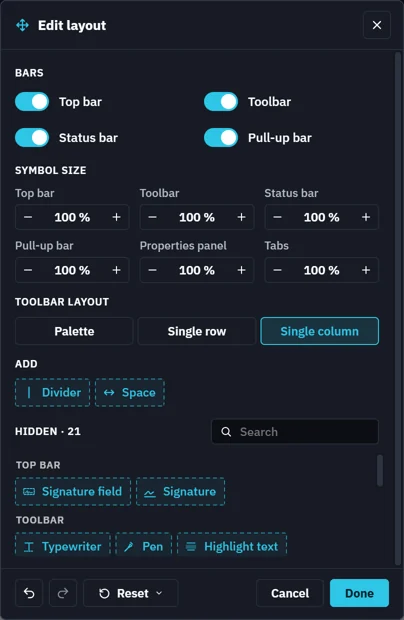
    The Edit layout panel: BARS, SYMBOL SIZE, TOOLBAR LAYOUT, ADD, HIDDEN, and Undo, Redo, Reset, Cancel, Done
  6. Done keeps it. Cancel goes back to before, Reset to how Fluah ships.

    Undo, Redo, Reset, Cancel and Done
Was this page helpful?

Updated 6 November 2026