Docs Search the docs
  1. Docs
  2. Markups

Change how a markup looks

Colour, width, line style and more, from the top bar or Properties.

  • Tutorial
  • 2 min
  • Pro
  • Checked with Fluah 1.0.34

Where to find it

Properties

Steps

  1. Click a markup. Its look shows in the top bar.

    The selected rectangle's colour, fill, width, style and opacity in the top bar
  2. Click the colour, then pick another.
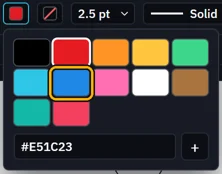
    The colours under the line colour, Blue marked
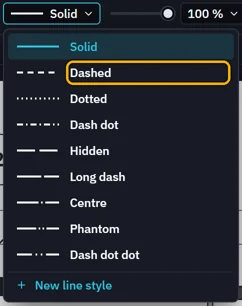
  3. Pick a line style.

    The line styles: Solid, Dashed, Dotted, Dash dot, Hidden, Long dash, Centre, Phantom, Dash dot dot and New line style
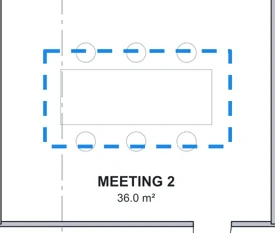
    The rectangle, now blue and dashed
  4. Everything else is in Properties, beside the toolbar.
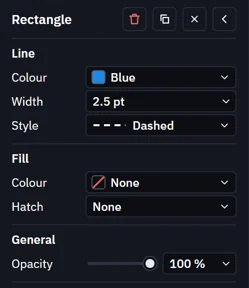
    The rectangle in Properties: Line, Fill, General and more
  5. Click Set as default to draw the next ones the same way.

    Set as default and Add to toolbox at the foot of Properties
Was this page helpful?

Updated 6 November 2026